
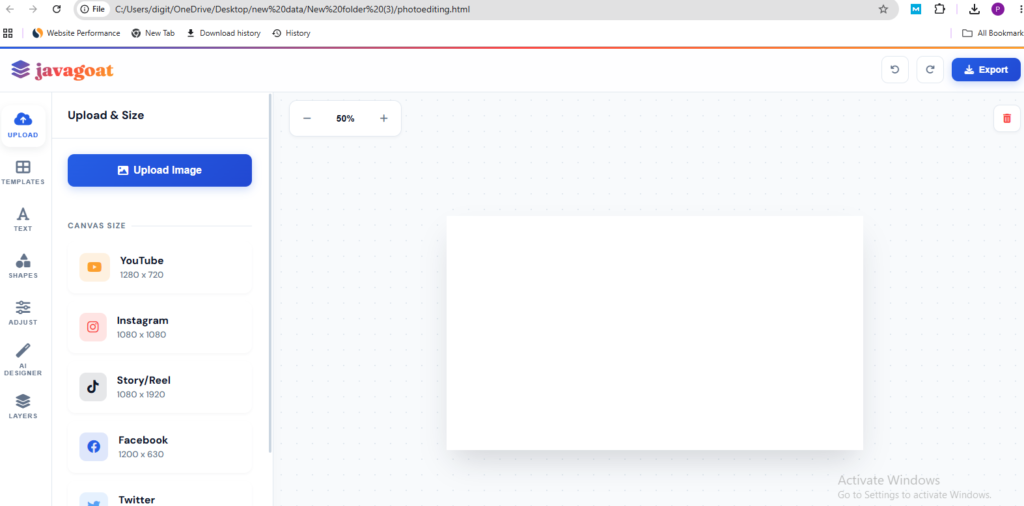
Create a modern, professional-grade web-based photo editor called "javagoat" that combines traditional design tools with AI-powered features. The application should be a single-page HTML file with embedded CSS and JavaScript, requiring no external dependencies except for CDN-hosted libraries. Design Philosophy Visual Style Modern Glassmorphism: Use frosted glass effects with backdrop blur for panels and menus Vibrant Color Palette: Primary: Vibrant Blue (#2563EB) Accent: Amber/Dark Yellow (#F59E0B) Danger: Coral/Mild Red (#EF4444) Dark: Slate Black (#0F172A) Light: Clean Light Grey (#F8FAFC) Colorful Gradients: Liberal use of multi-color gradients throughout the UI 3D Depth: Modern shadow system with multiple elevation levels Smooth Animations: Use cubic-bezier transitions (0.4, 0, 0.2, 1) for all interactions Typography Primary Font: 'DM Sans' (clean, modern sans-serif) Display Font: 'Fraunces' (serif for logo and headings) Font weights: 400 (regular), 500 (medium), 600 (semibold), 700 (bold), 800/900 (extra bold) Application Structure Layout Components 1. Header (Glassmorphism Style) Semi-transparent white background with blur effect Colorful top accent line (gradient: blue → red → amber) Logo: "javagoat" with gradient text and layer icon Action buttons: Undo/Redo (ghost style with icons) Export button (primary gradient style) Height: 70px desktop, 60px mobile Fixed position at top 2. Sidebar (Vertical Toolbar) Width: 88px on desktop Contains 7 tool buttons stacked vertically: Upload (cloud icon) Templates (grid icon) Text (font icon) Shapes (shapes icon) Adjust (sliders icon) AI Designer (magic wand icon) Layers (layer-group icon) Each button shows: Large icon (1.35rem) Small uppercase label (0.65rem) Active state: background shadow, colorful left indicator bar Mobile: Converts to horizontal bottom bar 3. Panel Drawer (Side Panel) Width: 340px (320px on tablet) Glassmorphism background Sticky header with panel title Scrollable content area Contains different panels that switch based on active tool Mobile: Slides up from bottom (50vh max height) 4. Canvas Area Flexible space taking remaining viewport Dot matrix background pattern (24px grid) Toolbar at top with zoom controls Scrollable canvas container Canvas wrapper with shadow and zoom transform Feature Panels Upload Panel Canvas Size Presets (horizontal scroll on mobile): YouTube: 1280×720 (red YouTube icon) Instagram: 1080×1080 (gradient Instagram icon) Story/Reel: 1080×1920 (TikTok icon) Facebook: 1200×630 (blue Facebook icon) Twitter: 1500×500 (light blue Twitter icon) Each preset card includes: Colorful background matching platform brand Platform icon Dimensions label Templates Panel Social Media Templates: YouTube (red gradient background) Instagram (rainbow gradient) TikTok (dark with cyan/pink gradient) Business (blue gradient) Color & Gradient Templates: Purple (indigo to purple) Sunset (amber to red) Ocean (cyan to blue) Emerald (green gradient) Template cards: 2-column grid, aspect ratio 1:1, gradient backgrounds, label overlay at bottom Text Panel Add Text Buttons: Add 3D Heading (72px, 3D shadow enabled) Add Subheading (42px) Add Body Text (24px) Text Properties (when text selected): Font size slider (10-200px) Font family dropdown (DM Sans, Fraunces, Arial, Impact, Georgia, Courier New, Verdana) Text color picker with preview circle Gradient toggle switch 8 preset gradient combinations in 4×2 grid Custom gradient with two color pickers 3D Shadow toggle Depth slider (0-20) Shadow color picker Elements Panel Basic Shapes (3-column grid): Rectangle Circle Triangle Line Star Heart Shape Properties (when shape selected): Fill color picker Border/Stroke color picker Border radius slider (0-100) AI Tools Panel Background Remover: Description text explaining the feature "Remove Background" button (uses Remove.bg API) Requires image layer to be selected Shows loading spinner during processing AI Image Generator: Multi-line textarea for prompt input "Generate AI Image" button Uses Hugging Face Inference API Model: stabilityai/stable-diffusion-xl-base-1.0 Provider: nscale 5 inference steps for speed Layers Panel Displays all objects in reverse order (top to bottom) Each layer shows: Appropriate icon (font, image, shape-specific) Object name/preview text Active highlight for selected layer Empty state message when no layers Click to select layer Adjust Panel Image Filters (sliders): Brightness (0-200%, default 100) Contrast (0-200%, default 100) Saturation (0-200%, default 100) Blur (0-10px, 0.5 step) Export Options: Transparent background toggle Format dropdown (PNG, JPG, WebP) Canvas Functionality Object System Create a CanvasObject class that handles: Properties: id (unique identifier) type ('image', 'text', 'shape') x, y (center position) width, height rotation (radians) opacity (0-1) shadowColor, shadowBlur, shadowOffX, shadowOffY Type-specific properties Text Objects: text content (supports multi-line with \n) fontSize, fontFamily, color useGradient (boolean) gradientColor1, gradientColor2 use3D (boolean) shadow3dDepth, shadow3dColor Shape Objects: shape type (rectangle, circle, triangle, line, star, heart) fill color stroke color borderRadius (for rectangles) Image Objects: img (Image element reference) Transform Controls – CRITICAL INTERACTIVE FUNCTIONALITY Selection Overlay (Absolutely Positioned Div – NOT Canvas-based): Blue border (2px solid #2563EB) 4 corner resize handles (circular, 14px diameter) Rotate handle at bottom (32px circle with sync icon) MUST be a separate HTML div element positioned absolutely over the canvas Scales and positions based on zoom level Rotates using CSS transform to match object rotation Transform Controls Implementation – STEP BY STEP: HTML Structure Required: html<div class="transform-controls" id="transformControls"> <div class="transform-handle handle-nw" data-handle="nw"></div> <div class="transform-handle handle-ne" data-handle="ne"></div> <div class="transform-handle handle-sw" data-handle="sw"></div> <div class="transform-handle handle-se" data-handle="se"></div> <div class="rotate-handle" id="rotateHandle"> <i class="fas fa-sync-alt"></i> </div> </div> CSS Positioning (Must have pointer-events): css.transform-controls { position: absolute; border: 2px solid var(–primary); pointer-events: none; /* Container has no events */ display: none; z-index: 100; } .transform-handle, .rotate-handle { pointer-events: auto; /* But handles DO have events */ cursor: pointer; } Coordinate Conversion System: javascriptfunction getCanvasCoords(clientX, clientY) { const rect = state.canvas.getBoundingClientRect(); const scaleX = state.canvas.width / rect.width; const scaleY = state.canvas.height / rect.height; return { x: (clientX – rect.left) * scaleX, y: (clientY – rect.top) * scaleY }; } WHY THIS IS CRITICAL: The canvas has a native width/height (e.g., 1280×720) but is displayed at a smaller size due to CSS zoom. Mouse coordinates from the browser are in screen pixels, but canvas operations need canvas pixels. This function converts between the two coordinate systems. Hit Detection with Rotation Support: javascriptcontains(mx, my) { // Transform mouse coordinates into object's local space const dx = mx – this.x; const dy = my – this.y; // Rotate point back by negative rotation angle const rx = dx * Math.cos(-this.rotation) – dy * Math.sin(-this.rotation); const ry = dx * Math.sin(-this.rotation) + dy * Math.cos(-this.rotation); // Check if rotated point is within object bounds return (rx >= -this.width/2 && rx <= this.width/2 && ry >= -this.height/2 && ry <= this.height/2); } WHY THIS WORKS: When an object is rotated, we can't just check if the mouse is within x±width and y±height. Instead, we rotate the mouse position backwards by the object's rotation angle, then check if it's within the un-rotated bounds. Update Selection Overlay Function: javascriptfunction updateSelectionOverlay() { const overlay = document.getElementById('transformControls'); if (!state.selectedObj || state.isEditingText) { overlay.style.display = 'none'; return; } overlay.style.display = 'block'; overlay.classList.add('active'); // Calculate screen position accounting for zoom const scale = state.zoom; overlay.style.left = `${state.selectedObj.x * scale}px`; overlay.style.top = `${state.selectedObj.y * scale}px`; overlay.style.width = `${state.selectedObj.width * scale}px`; overlay.style.height = `${state.selectedObj.height * scale}px`; // Apply rotation using CSS transform overlay.style.transform = `translate(-50%, -50%) rotate(${state.selectedObj.rotation}rad)`; updateInputValues(state.selectedObj); } KEY POINTS: Multiply canvas coordinates by zoom to get screen coordinates Use translate(-50%, -50%) because object x,y is center point Rotation must be in radians for CSS Interaction Modes – DETAILED EVENT HANDLING 1. DRAG TO MOVE Mouse Down on Object: javascriptfunction handlePointerDown(e) { if (e.button === 2) return; // Ignore right-click const coords = getCanvasCoords(e.clientX, e.clientY); // Find clicked object (reverse order = top to bottom) let clicked = null; for (let i = state.objects.length – 1; i >= 0; i–) { if (state.objects[i].contains(coords.x, coords.y)) { clicked = state.objects[i]; break; } } selectObject(clicked); if (clicked) { state.isDragging = true; state.dragStartMouseX = coords.x; state.dragStartMouseY = coords.y; state.dragStartObjX = clicked.x; state.dragStartObjY = clicked.y; } } Mouse Move While Dragging: javascriptfunction handlePointerMove(e) { if (!state.isDragging || !state.selectedObj) return; const coords = getCanvasCoords(e.clientX, e.clientY); // Calculate delta and update object position state.selectedObj.x = state.dragStartObjX + (coords.x – state.dragStartMouseX); state.selectedObj.y = state.dragStartObjY + (coords.y – state.dragStartMouseY); render(); updateSelectionOverlay(); } Mouse Up: javascriptfunction handlePointerUp() { if (state.isDragging) { saveHistory(); // Save undo state } state.isDragging = false; } 2. RESIZE WITH HANDLES Handle Mouse Down: javascript// Attach to each .transform-handle element document.querySelectorAll('.transform-handle').forEach(handle => { handle.addEventListener('mousedown', (e) => { e.stopPropagation(); // Prevent triggering drag state.isResizing = true; state.resizeHandle = handle.dataset.handle; // 'nw', 'ne', 'sw', 'se' state.dragStartMouseX = e.clientX; state.dragStartMouseY = e.clientY; if (state.selectedObj) { state.dragStartObjX = state.selectedObj.width; state.dragStartObjY = state.selectedObj.height; } }); }); Mouse Move While Resizing: javascriptfunction handlePointerMove(e) { // … other checks … if (state.isResizing && state.selectedObj) { // Calculate sensitivity based on canvas/screen ratio const sensitivity = state.canvas.width / state.canvas.getBoundingClientRect().width; const dx = (e.clientX – state.dragStartMouseX) * sensitivity; const dy = (e.clientY – state.dragStartMouseY) * sensitivity; const obj = state.selectedObj; // Different logic for each corner if (state.resizeHandle === 'se') { // Bottom-right: increase both dimensions obj.width = Math.max(10, state.dragStartObjX + dx); obj.height = Math.max(10, state.dragStartObjY + dy); } else if (state.resizeHandle === 'sw') { // Bottom-left: decrease width, increase height obj.width = Math.max(10, state.dragStartObjX – dx); obj.height = Math.max(10, state.dragStartObjY + dy); } else if (state.resizeHandle === 'ne') { // Top-right: increase width, decrease height obj.width = Math.max(10, state.dragStartObjX + dx); obj.height = Math.max(10, state.dragStartObjY – dy); } else if (state.resizeHandle === 'nw') { // Top-left: decrease both dimensions obj.width = Math.max(10, state.dragStartObjX – dx); obj.height = Math.max(10, state.dragStartObjY – dy); } render(); updateSelectionOverlay(); } } WHY CORNERS BEHAVE DIFFERENTLY: SE (bottom-right): Both dx and dy make object bigger SW (bottom-left): Moving left makes narrower (-dx), moving down makes taller (+dy) NE (top-right): Moving right makes wider (+dx), moving up makes shorter (-dy) NW (top-left): Both make object smaller 3. ROTATE WITH HANDLE Rotate Handle Mouse Down: javascriptdocument.getElementById('rotateHandle').addEventListener('mousedown', (e) => { e.stopPropagation(); state.isRotating = true; }); Mouse Move While Rotating: javascriptfunction handlePointerMove(e) { // … other checks … if (state.isRotating && state.selectedObj) { // Get object's screen position const rect = state.canvas.getBoundingClientRect(); const centerX = rect.left + state.selectedObj.x * (rect.width / state.canvas.width); const centerY = rect.top + state.selectedObj.y * (rect.height / state.canvas.height); // Calculate angle from object center to mouse const angle = Math.atan2(e.clientY – centerY, e.clientX – centerX); // Set rotation (add π/2 so handle at bottom = 0 rotation) state.selectedObj.rotation = angle + Math.PI / 2; render(); updateSelectionOverlay(); } } WHY ADD π/2: Without adjustment, 0 rotation would point the object to the right. Adding π/2 (90 degrees) makes 0 rotation point upward, which is more intuitive. Double-Click for Text Editing Double-Click Detection: javascriptfunction handlePointerDown(e) { // … existing code … if (state.selectedObj && state.selectedObj.type === 'text' && state.selectedObj.contains(coords.x, coords.y)) { const now = Date.now(); if (state.lastClickTime && now – state.lastClickTime < 300) { // Double-click detected startTextEdit(); state.lastClickTime = 0; return; } state.lastClickTime = now; } } In-Place Text Editing Start Editing Function: javascriptfunction startTextEdit() { if (!state.selectedObj || state.selectedObj.type !== 'text') return; state.isEditingText = true; const editor = document.getElementById('textEditor'); const obj = state.selectedObj; const scale = state.zoom; // Set content and styling editor.innerText = obj.text; editor.style.display = 'flex'; editor.style.fontSize = `${obj.fontSize * scale}px`; editor.style.fontFamily = obj.fontFamily; editor.style.color = obj.useGradient ? obj.gradientColor1 : obj.color; // Position at object location editor.style.left = `${obj.x * scale}px`; editor.style.top = `${obj.y * scale}px`; editor.style.minWidth = `${obj.width * scale}px`; editor.style.minHeight = `${obj.height * scale}px`; editor.style.transform = `translate(-50%, -50%) rotate(${obj.rotation}rad)`; // Hide transform controls document.getElementById('transformControls').style.display = 'none'; // Focus and select all text editor.focus(); const range = document.createRange(); range.selectNodeContents(editor); const sel = window.getSelection(); sel.removeAllRanges(); sel.addRange(range); render(); // Re-render without this object } Finish Editing: javascriptfunction finishTextEdit() { if (!state.isEditingText) return; const editor = document.getElementById('textEditor'); if (state.selectedObj) { state.selectedObj.text = editor.innerText || " "; measureTextObj(state.selectedObj); // Recalculate dimensions saveHistory(); } editor.style.display = 'none'; state.isEditingText = false; document.getElementById('transformControls').style.display = ''; render(); updateSelectionOverlay(); } Context Menu Right-click on selected object shows menu with: Bring to Front (⇧⌘]) Bring Forward (⌘]) Send Backward (⌘[) Send to Back (⇧⌘[) Duplicate (⌘D) Delete (⌫) Modern glass style with backdrop blur, keyboard shortcuts shown Common Properties Panel Appears at top of panel drawer when any object is selected: Opacity Slider: 0-100%, updates in real-time Shadow Effect: Color picker Blur slider (0-50px) Offset X slider (-50 to +50) Offset Y slider (-50 to +50) Technical Implementation State Management Global state object containing: canvas, ctx (canvas element and 2D context) objects (array of all CanvasObject instances) selectedObj (currently selected object or null) zoom (0.1-3.0 scale factor) interaction flags (isDragging, isResizing, isRotating, isEditingText) drag/resize tracking variables: dragStartMouseX, dragStartMouseY (initial mouse position) dragStartObjX, dragStartObjY (initial object x,y or width,height) resizeHandle (which corner: 'nw', 'ne', 'sw', 'se') lastClickTime (for double-click detection) backgroundImage, backgroundColor transparentBackground flag history array and historyStep for undo/redo Rendering Pipeline Clear canvas Apply CSS filters (brightness, contrast, saturation, blur) Draw background (color or image, unless transparent) Iterate objects array and call draw() method on each Skip currently editing text object (it's shown in overlay) Reset filters Event Handling – COMPLETE IMPLEMENTATION Window-Level Events: javascriptfunction setupEventListeners() { const wrapper = document.getElementById('canvasWrapper'); // Mouse events wrapper.addEventListener('mousedown', handlePointerDown); window.addEventListener('mousemove', handlePointerMove); window.addEventListener('mouseup', handlePointerUp); // Touch events (mobile) wrapper.addEventListener('touchstart', handleTouchStart, {passive: false}); wrapper.addEventListener('touchmove', handleTouchMove, {passive: false}); wrapper.addEventListener('touchend', handleTouchEnd); // Context menu wrapper.addEventListener('contextmenu', (e) => { e.preventDefault(); if (state.selectedObj) { showContextMenu(e.pageX, e.pageY); } }); // Close context menu on any click window.addEventListener('click', (e) => { if (!e.target.closest('.context-menu')) { document.getElementById('contextMenu').style.display = 'none'; } }); // Handle events (already covered above) document.querySelectorAll('.transform-handle').forEach(h => { h.addEventListener('mousedown', startResize); }); document.getElementById('rotateHandle').addEventListener('mousedown', startRotate); // … other event listeners … } Touch Support: javascriptfunction handleTouchStart(e) { if (e.touches.length === 1) { const touch = e.touches[0]; const fakeEvent = new MouseEvent('mousedown', { clientX: touch.clientX, clientY: touch.clientY, button: 0 }); handlePointerDown(fakeEvent); } } function handleTouchMove(e) { if (e.touches.length === 1) { e.preventDefault(); // Prevent scrolling const touch = e.touches[0]; const fakeEvent = new MouseEvent('mousemove', { clientX: touch.clientX, clientY: touch.clientY }); handlePointerMove(fakeEvent); } } function handleTouchEnd(e) { handlePointerUp(new MouseEvent('mouseup', {})); } Keyboard Shortcuts: javascriptfunction handleKeyboard(e) { if (state.isEditingText) return; // Don't interfere with text input // Undo if ((e.metaKey || e.ctrlKey) && e.key === 'z' && !e.shiftKey) { e.preventDefault(); undo(); } // Redo if ((e.metaKey || e.ctrlKey) && (e.key === 'y' || (e.key === 'z' && e.shiftKey))) { e.preventDefault(); redo(); } // Duplicate if ((e.metaKey || e.ctrlKey) && e.key === 'd') { e.preventDefault(); duplicateObject(); } // Delete if (e.key === 'Delete' || e.key === 'Backspace') { if (state.selectedObj) { deleteSelected(); } } // Deselect if (e.key === 'Escape') { selectObject(null); } } document.addEventListener('keydown', handleKeyboard); Drawing Objects with Rotation Critical Drawing Pattern: javascriptdraw(ctx) { ctx.save(); // Save current context state ctx.globalAlpha = this.opacity; // Apply shadow if set if (this.shadowColor !== 'transparent') { ctx.shadowColor = this.shadowColor; ctx.shadowBlur = this.shadowBlur; ctx.shadowOffsetX = this.shadowOffX; ctx.shadowOffsetY = this.shadowOffY; } // CRITICAL: Move to object center, then rotate ctx.translate(this.x, this.y); ctx.rotate(this.rotation); // Now draw at origin, with object centered // All coordinates are relative to center (0, 0) if (this.type === 'shape') { ctx.fillStyle = this.fill; ctx.strokeStyle = this.stroke; ctx.beginPath(); if (this.data.shape === 'rectangle') { // Draw from -width/2 to +width/2 (centered) this.roundRect(ctx, -this.width/2, -this.height/2, this.width, this.height, this.borderRadius); } else if (this.data.shape === 'circle') { ctx.arc(0, 0, this.width/2, 0, Math.PI * 2); } // … other shapes … ctx.fill(); if (this.stroke !== 'transparent') ctx.stroke(); } else if (this.type === 'image' && this.data.img) { ctx.drawImage(this.data.img, -this.width/2, -this.height/2, this.width, this.height); } else if (this.type === 'text') { this.drawText(ctx); } ctx.restore(); // Restore context state } WHY THIS WORKS: By translating to the object's center and then rotating, we create a local coordinate system where (0,0) is the center of our object. Drawing from -width/2 to +width/2 centers the object perfectly, and the rotation applies around its center. History System Save snapshot after each action (add, move, resize, rotate, delete, etc.) Save after mouseup/pointerup, not during drag (performance) Store as JSON string (serialize Image src for image objects) Limit to 20 states Restore by creating new CanvasObject instances from data javascriptfunction saveHistory() { // Trim future history if we're not at the end state.history = state.history.slice(0, state.historyStep + 1); // Serialize current state const snapshot = state.objects.map(obj => ({ …obj, data: obj.type === 'image' ? { img: obj.data.img.src } : obj.data })); state.history.push(JSON.stringify(snapshot)); state.historyStep++; // Limit history size if (state.history.length > 20) { state.history.shift(); state.historyStep–; } } function restoreHistory() { const data = JSON.parse(state.history[state.historyStep]); state.objects = data.map(d => { const obj = new CanvasObject(d.type, d); Object.assign(obj, d); if (d.type === 'image' && d.data.img) { const img = new Image(); img.src = d.data.img; obj.data.img = img; } return obj; }); selectObject(null); updateLayersList(); render(); } AI Integration Remove.bg API: javascript- Endpoint: https://api.remove.bg/v1.0/removebg – Method: POST with FormData – API Key: PLACEHOLDER – Parameters: image_file (blob), size: 'auto' – Response: Blob (image with transparent background) Hugging Face Inference API: javascript- Import from CDN: @huggingface/inference – Token: PLACE – Use textToImage method with: – provider: "nscale" – model: "stabilityai/stable-diffusion-xl-base-1.0" – inputs: user prompt – parameters: { num_inference_steps: 5 } – Returns: Blob (generated image) Export Functionality Deselect all objects before export Re-render to ensure clean output Support PNG, JPG, WebP formats Use canvas.toDataURL() with appropriate MIME type Download via temporary anchor element Respect transparent background setting Mobile Responsiveness Breakpoint: 768px Layout Changes: Sidebar moves to bottom (horizontal, 70px height) Tool buttons display in row with flex Active indicator moves to top (horizontal bar) Panel drawer becomes bottom sheet (slides up) Close button appears in panel header Canvas height adjusts (calc(100vh – 130px)) Template grid becomes horizontal scroll Preset cards become horizontal scroll Touch Optimization: Larger touch targets (min 44px) Prevent default on touch events Touch-to-mouse event conversion Single-finger gestures only UI Component Specifications Buttons Primary: Gradient blue, white text, glow shadow Secondary: Gradient dark, white text Ghost: White background, border, muted text Icon: 42px square, icon only All buttons: Border radius: 10px Padding: 0.625rem 1.25rem Font weight: 600 Transform on hover: translateY(-2px) Active: translateY(0) Sliders Height: 6px Border radius: 3px Accent color: primary blue Thumb: 20px circle, white border, blue fill, shadow Hover: scale(1.15) Color Pickers Preview: 40px square, rounded (10px) Border: 2px solid border color Hover: border changes to primary, scale(1.05) Input absolutely positioned, 200% size, -50% offset Toggle Switches Size: 48x26px Border radius: 13px Background: border color (inactive), blue gradient (active) Knob: 20px white circle, 3px offset Active position: left 25px Dropdown/Textarea Padding: 0.75rem 1rem Border: 2px solid border color Border radius: 10px Background: light (hover: surface) Focus: primary border, rgba glow shadow Section Headers Font size: 0.75rem Font weight: 700 Uppercase, letter-spacing: 0.1em Color: text-muted Decorative line after text (flex-grow border) Animation & Transitions Default Transition: all 0.3s cubic-bezier(0.4, 0, 0.2, 1) Hover Effects: Buttons: lift + shadow increase Cards: lift + border color change + scale Tools: background + color + scale Handles: scale(1.2) Loading States: Spinner icon (fa-spin) Button text changes Disabled state during API calls Scrollbar Styling Width/Height: 8px Track: transparent Thumb: #CBD5E1, 4px radius, 2px border Hover: #94A3B8 Accessibility Considerations Semantic HTML structure Title attributes on icon-only buttons Keyboard navigation support Focus states on interactive elements Sufficient color contrast Touch target sizes (min 42px) Performance Optimizations Canvas rendering only on state changes Debounced slider inputs for real-time updates Zoom transform on wrapper, not canvas redraw Event delegation where possible Minimize DOM manipulations Lazy load images Error Handling Alert user for API failures with error message Restore button state after error Validate selections (e.g., image layer for background removal) Graceful fallbacks for missing features CRITICAL DEBUGGING CHECKLIST If transform controls don't work: ✓ Are handles getting pointer-events: auto while container has pointer-events: none? ✓ Is getCanvasCoords() correctly converting screen to canvas coordinates? ✓ Does contains() method properly handle rotation with inverse rotation matrix? ✓ Is updateSelectionOverlay() being called after every state change? ✓ Are event listeners attached to window (not just canvas) for move/up events? ✓ Is stopPropagation() called on handle mousedown to prevent drag? ✓ Are all interaction flags (isDragging, isResizing, isRotating) properly reset on mouseup? ✓ Is rotation stored in radians (not degrees)? ✓ Is the transform overlay positioned with translate(-50%, -50%)? ✓ Are zoom calculations applied consistently to overlay position and size?